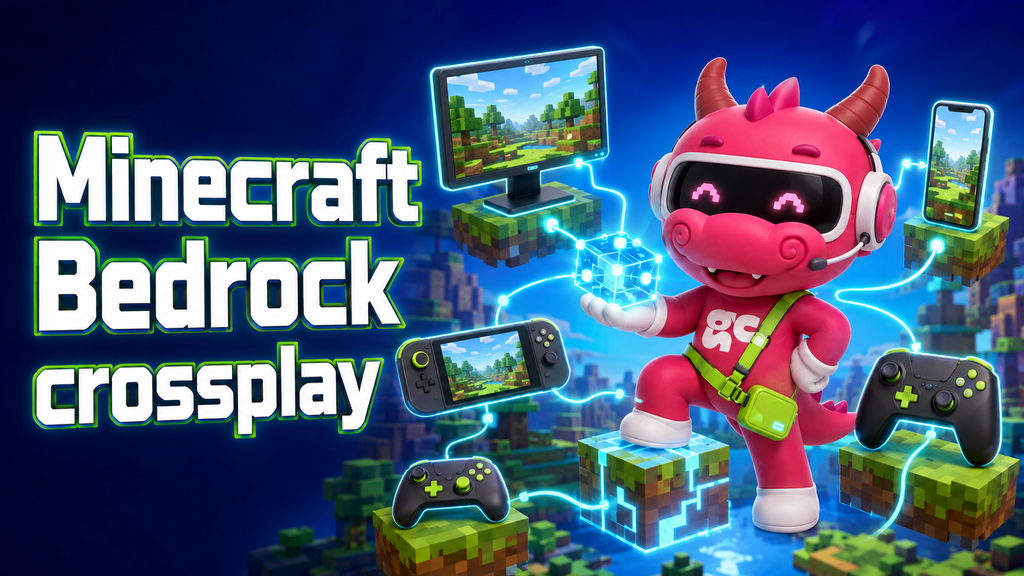
Minecraft Bedrock crossplay lets players on Windows PC, Android, iPhone, Xbox, PlayStation, and Nintendo Switch play together. Everyone needs to use Minecraft Bedrock Edition, sign in with a Microsoft account, and add one another through Microsoft or Xbox gamertags.
Console players may also need their platform’s online multiplayer service. If you cannot see a friend, send an invitation, or join a world, the cause is usually an incorrect account, a different game version, privacy restrictions, multiplayer settings, or a console subscription issue.
Does Minecraft Bedrock support crossplay?
Yes. Minecraft Bedrock supports cross-platform multiplayer between compatible versions on Windows, mobile devices, Xbox, PlayStation, and Nintendo Switch.
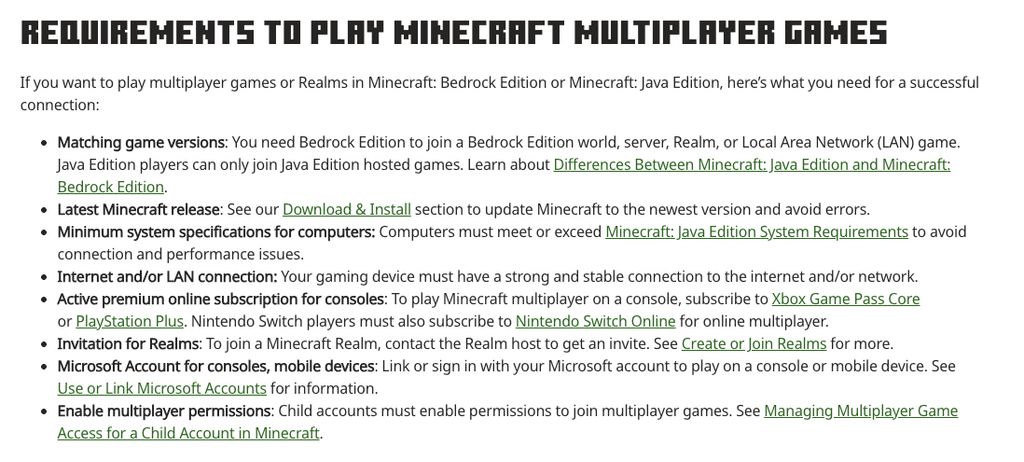
Minecraft’s official support documentation confirms that Bedrock players can join Bedrock worlds, Realms, servers, and LAN games. Java Edition players cannot directly join a Bedrock world because the two editions use different systems. (Minecraft multiplayer requirements)
Platforms that support Minecraft Bedrock crossplay
| Platform | Supports Bedrock crossplay? | Main requirement |
| Windows PC | Yes | Minecraft Bedrock and a Microsoft account |
| Android | Yes | Minecraft Bedrock and a Microsoft account |
| iPhone and iPad | Yes | Minecraft Bedrock and a Microsoft account |
| Xbox One and Xbox Series X/S | Yes | Microsoft account and online multiplayer access |
| PlayStation 4 and PlayStation 5 | Yes | Microsoft account and PlayStation Plus for online play |
| Nintendo Switch | Yes | Microsoft account and Nintendo Switch Online for online features |
Nintendo specifically states that the Switch version can play with people on other platforms when everyone is using Bedrock Edition. PlayStation lists PlayStation Plus as required for online Minecraft play. (Minecraft on Nintendo Switch, Minecraft on PlayStation)
Bedrock crossplay vs. Java multiplayer
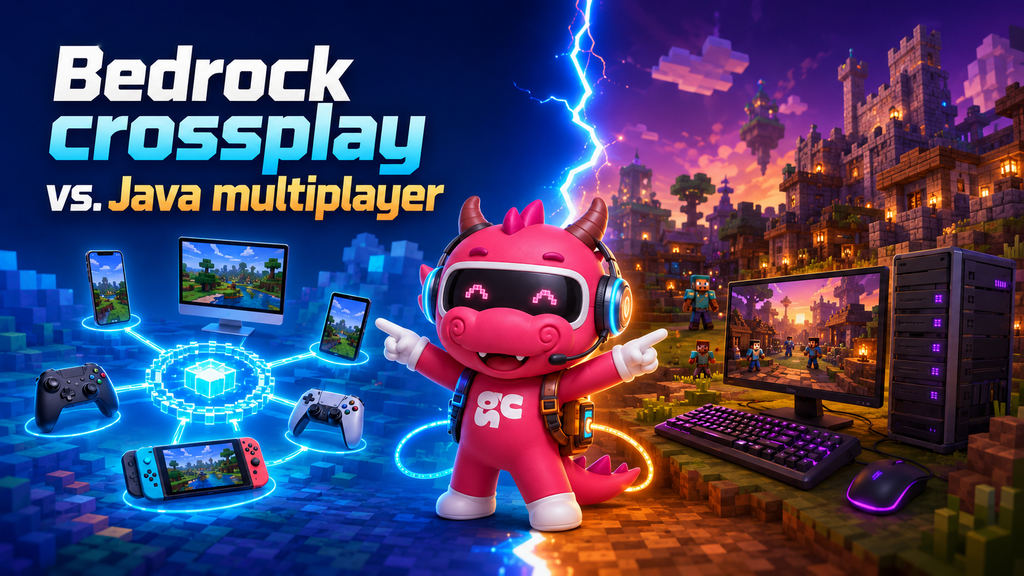
Bedrock crossplay works between Bedrock players. It does not automatically connect Bedrock and Java Edition.
For example:
- A Windows Bedrock player can play with someone on Xbox.
- An Android player can play with someone on Nintendo Switch.
- A PlayStation player can play with someone on iPhone.
- A Java Edition player cannot simply join a Bedrock world.
- A Java server may support Bedrock players through separate server software, but that is not Minecraft’s standard crossplay setup.
Before troubleshooting, confirm that everyone is opening the same edition.
What you need for Minecraft Bedrock crossplay
Check these requirements on every device before trying to join a world.
Everyone must use Bedrock Edition.
Minecraft crossplay only works when players use compatible Bedrock versions.
On Windows, make sure you open Minecraft Bedrock rather than Java Edition. Players on mobile and consoles should also update Minecraft before trying to connect.
If one player is using an older version, the world may not appear, or the connection may fail.
Everyone needs a Microsoft account
A Microsoft account is required for Bedrock cross-platform play. Players use their Microsoft or Xbox gamertag to find and add one another.
A PlayStation Network account, Nintendo Account, Apple ID, or Google account does not replace the Microsoft account used for Minecraft crossplay.
To check your account:
- Open Minecraft Bedrock.
- Select Sign in with a Microsoft account if shown.
- Follow the sign-in instructions.
- Confirm that the correct gamertag appears on the main menu.
- Use that gamertag when adding friends.
Minecraft states that linking a Microsoft account gives players access to cross-platform play, subscriptions, and Marketplace purchases. (Accounts required to play Minecraft)
Console players may need an online subscription
PC and mobile players generally do not need a console subscription. Xbox, PlayStation, and Nintendo Switch may require their respective online multiplayer service for internet play.
| Platform | Service to check |
| Xbox | A current Game Pass plan that includes online console multiplayer |
| PlayStation | PlayStation Plus |
| Nintendo Switch | Nintendo Switch Online |
The name and availability of Xbox plans can vary by region and may change over time. Check the official platform store before relying on a specific plan name or price. (Xbox Game Pass FAQ, PlayStation Plus, Nintendo Switch Online)
How to play crossplay in Minecraft Bedrock
Once everyone is signed in, you can connect through a normal multiplayer world, a Realm, or a server.
Step 1: Sign in to your Microsoft account
Open Minecraft Bedrock and check the account shown on the main menu.
If the game displays Sign in with a Microsoft account, crossplay features may not be ready. Use the sign-in code or instructions shown by Minecraft, then return to the game and confirm that your gamertag is visible.
If the wrong account is connected, sign out and use the Microsoft account associated with the gamertag your friends know.
Step 2: Add friends using their gamertag
To add a friend in Minecraft Bedrock:
- Open Play.
- Select the Friends tab.
- Choose Add Friend.
- Enter the exact Microsoft or Xbox gamertag.
- Send the friend request.
- Ask your friend to accept it.
- Confirm that both accounts appear online.
Minecraft recommends using the Microsoft friend list when players are using different platforms. (Add friends to your Minecraft Bedrock friend list)
Do not use a Nintendo username, PlayStation Network ID, or another display name unless it is also the player’s Microsoft gamertag.
Step 3: Create a multiplayer world
The host should:
- Select Play.
- Choose Create New or edit an existing world.
- Open the multiplayer settings.
- Turn multiplayer on.
- Choose who can join the world.
- Create or load the world.
A normal world is available to friends while the host is playing. When the host leaves, other players will usually be disconnected.
Step 4: Invite friends to the world
After entering the world:
- Open the pause menu.
- Select Invite to Game.
- Choose the friends you want to invite.
- Send the invitation.
- Ask your friends to check the Friends tab if they do not see it.
If the Invite to Game button is missing, check whether the host is signed in, multiplayer is enabled, and the account can use online multiplayer.
How to play Minecraft crossplay on Switch, PC, and Xbox
Minecraft crossplay between Switch and PC
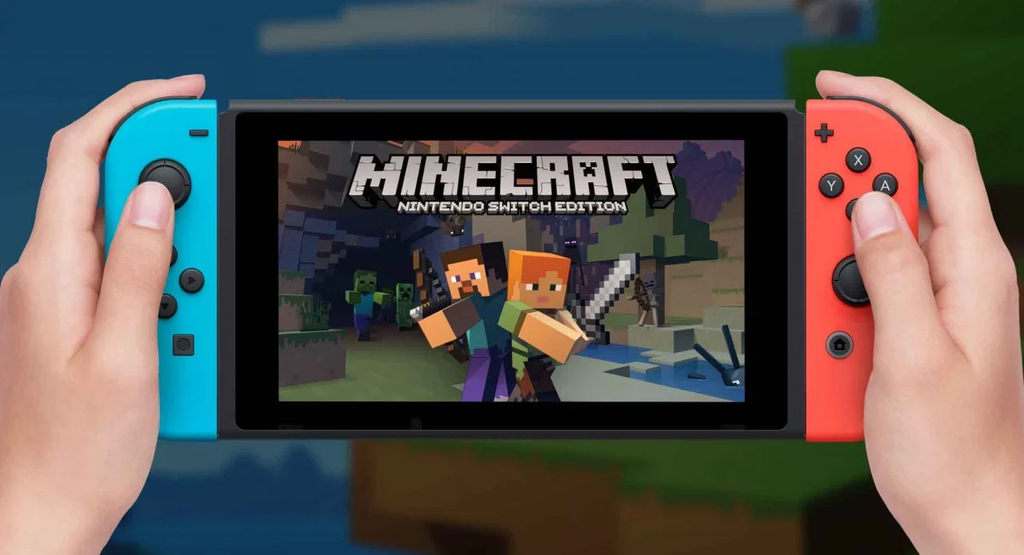
To connect a Nintendo Switch player with someone on PC:
- Both players open Minecraft Bedrock.
- Both sign in with Microsoft accounts.
- Add each other using Microsoft or Xbox gamertags.
- Confirm that Nintendo Switch Online is active for the Switch player.
- The PC player creates a multiplayer world.
- The Switch player opens Play, then Friends.
- Select the PC player’s world and join.
If the world does not appear, close Minecraft on both devices, reopen the game, and check that both versions are compatible.
Minecraft crossplay between Xbox and PC
Xbox and PC players can play together through Bedrock Edition.
Check that:
- The PC player opened Bedrock, not Java Edition.
- Both players use Microsoft accounts.
- The gamertag was entered correctly.
- Xbox online multiplayer access is active.
- Privacy settings allow multiplayer and cross-network play.
- The host’s world has multiplayer enabled.
The Microsoft account does not need to be the same account on every device. Each player should use their own account and add the others as friends.
Minecraft PS4 and Xbox crossplay
This Minecraft PS4 Xbox crossplay guide follows the same basic process:
- The PS4 player opens Bedrock Edition.
- The Xbox player opens Bedrock Edition.
- Both players sign in with Microsoft accounts.
- They add each other using Microsoft or Xbox gamertags.
- The PS4 player checks PlayStation Plus.
- The Xbox player checks their online multiplayer access.
- One player creates a multiplayer world.
- The host sends an invitation through Minecraft.
PSN friends and Xbox console friends do not automatically replace the Microsoft friend list inside Minecraft. Add both players through the Minecraft Friends menu if they do not appear.
Minecraft crossplay on mobile
Android and iPhone players can join Bedrock worlds hosted by PC or console players.
They need:
- Minecraft Bedrock Edition
- A Microsoft account
- A stable internet connection
- A compatible game version
- Permission to use multiplayer
Android and iOS players do not need a console online subscription. Those services apply to the relevant console platform.
How to use Minecraft Bedrock crossplay with Realms
What is a Realm?
A Realm is a private, always-online Minecraft world hosted by Mojang/Microsoft that invited players can access even when the owner is offline.
A normal world is tied to the host’s game session. A Realm remains available online according to its subscription and account settings.
Realms are useful when:
- Friends play at different times.
- The host does not want to keep their device running.
- The group wants one shared survival world.
- Players are using different Bedrock platforms.
- The group wants a simpler option than server management.
Minecraft allows Bedrock worlds to be uploaded to the cloud and accessed from another supported device through Realms. (Use Realms to transfer a Bedrock world)
How to create a Bedrock Realm
- Open Minecraft Bedrock.
- Select Play.
- Choose Create New.
- Select the Realm option.
- Choose an available Realm plan.
- Create a new world or upload an existing one.
- Open the Realm settings.
- Add friends using their Microsoft gamertags.
How to invite friends to a Realm
- Select Play.
- Open the Realms tab.
- Select the Realm.
- Open the members or manage settings section.
- Add friends through their Microsoft accounts.
- Ask them to open the Realms tab and join.
Realms do not remove the requirement to use Bedrock Edition. Console players may still need the online service required by their platform.
Normal world vs. Realm vs. server
| Option | Best for | Main limitation |
| Normal world | Short sessions with a small group | The host usually needs to be online |
| Realm | A persistent private world | Requires a Realm subscription |
| Server | Larger groups and custom management | More complicated setup |
| LAN | Players on the same local network | Uses a local network rather than internet multiplayer. |
Minecraft crossplay server setup
A server can provide another way to play together, especially for groups that want a world to remain online.
Choose a Bedrock-compatible server
Before joining or setting up a server, check:
- Whether it supports Bedrock Edition
- The supported Minecraft version
- The server address and port
- Whether addons or behaviour packs are supported
- Whitelist and account requirements
- Player limits and performance
- Whether your console supports the required connection method
Minecraft’s official support lists worlds, Realms, and servers as ways for Bedrock players to play online together. (Play Minecraft Bedrock Edition online)
Basic server connection steps
- Get the server address and port from the server owner.
- Open Minecraft Bedrock.
- Select Play.
- Open the Servers tab.
- Choose Add Server if available.
- Enter the server name, address, and port.
- Save the server.
- Select the server and join.
Some consoles have limitations when connecting to external servers. For a small group, Realms is often easier to manage.
Minecraft Bedrock crossplay not working
When Minecraft Bedrock crossplay is not working, check account and platform requirements before changing network settings.
Friends cannot see each other online
Check these issues first:
- Both players are signed in with Microsoft accounts.
- The gamertag was entered exactly.
- The friend request was accepted.
- Both players are using Bedrock Edition.
- Both games are updated.
- Multiplayer is enabled in the host’s world.
- Privacy settings allow multiplayer.
- The console online service is active.
If the friend list is still empty, sign out of Minecraft, close the game completely, restart the device, and sign in again.
Minecraft says “unable to connect to world”
Possible causes include:
- Different game versions
- Unstable internet
- The host left the world
- Multiplayer is disabled
- Account privacy restrictions
- Router or NAT restrictions
- A broken addon or resource pack
- An offline server
- A console subscription problem
Try this order:
- Update Minecraft on every device.
- Close and reopen the game.
- Restart the router.
- Ask another player to host.
- Create a new world without addons.
- Check Microsoft and console privacy settings.
- Try joining a Realm or compatible server.
If a new world works but an existing world does not, the problem may be related to the world settings, addons, or resource packs.
Multiplayer is disabled
This message often points to account permissions rather than the world itself.
Check Microsoft or Xbox privacy settings for:
- You can join multiplayer games
- You can play with people outside Xbox network
- Clubs and community features
- Child account restrictions
- Family safety settings
For child accounts, a parent or family organizer may need to change the permissions. After changing them, sign out and back in to Minecraft.
The invite button is missing
The Invite to Game option may be unavailable when:
- The host is not signed in.
- Multiplayer is disabled.
- The player is still in the main menu.
- The Microsoft account cannot use online multiplayer.
- The console online service is inactive.
- The account is restricted by family settings.
- The world has not finished loading.
Enter the world first, then open the pause menu and check again.
The Switch player cannot see the Xbox or PC player
For Minecraft crossplay between Switch, PC, and Xbox, check:
- The Switch player is signed in with a Microsoft account.
- The correct Microsoft gamertag was added.
- Nintendo Switch Online is active.
- The Xbox or PC player is online.
- Multiplayer privacy settings allow cross-network play.
- Everyone is using a compatible Bedrock version.
If the accounts appear correct, close Minecraft completely on every device and restart the Switch before trying again.
Crossplay stopped working after an update
An update can create temporary compatibility problems when:
- One player has updated, and another has not.
- A server is still running an older version.
- An addon has not been updated.
- A resource pack is incompatible.
- A player has been signed out of their Microsoft account.
Update every device, check the server version, and test the connection in a new world without addons.
Minecraft Bedrock multiplayer fixes that often work
Use this checklist when you need a quick Minecraft Bedrock multiplayer fix:
- Confirm that everyone is using Bedrock Edition.
- Confirm that everyone is signed in with Microsoft accounts.
- Check the exact gamertag.
- Accept pending friend requests.
- Update Minecraft on every platform.
- Check the host’s multiplayer settings.
- Check Microsoft and Xbox privacy settings.
- Check PlayStation Plus, Xbox online multiplayer access, or Nintendo Switch Online.
- Restart Minecraft and the relevant device.
- Test a new world without addons.
- Restart the router.
- Try a Realm or compatible server.
Do not immediately delete the world or reinstall Minecraft. Account, version, privacy, host, and subscription checks can identify many connection problems first.
Can you play Minecraft Bedrock crossplay without a subscription?
PC and mobile players generally do not need a console online subscription. They still need Minecraft, a Microsoft account, internet access, and permission to use multiplayer.
Console requirements are different:
- Xbox consoles may require a current Xbox subscription that includes online console multiplayer.
- PlayStation requires PlayStation Plus for online play.
- Nintendo Switch requires Nintendo Switch Online for online features.
A Realm subscription is separate from the platform’s online multiplayer service. Depending on the console and account, a player may need both access to the Realm and the console’s online service.
Check the current platform requirements before purchasing a subscription because service names and benefits can change.
Can Minecraft Java and Bedrock play together?
Not through Minecraft’s normal crossplay feature.
Java and Bedrock use different editions, server software, and gameplay systems. A Java player cannot simply accept a Bedrock invitation and join a Bedrock world.
Some specialised servers use software such as Geyser to allow Bedrock players to connect to a Java server. That requires server-side configuration and may not provide identical gameplay across both editions.
For the simplest setup, make sure everyone uses the same edition before creating the world.
Minecraft Bedrock crossplay FAQs
Is Minecraft Bedrock cross-platform?
Yes. Minecraft Bedrock players on Windows, Android, iOS, Xbox, PlayStation, and Nintendo Switch can play together when they use compatible versions and Microsoft accounts.
Can Minecraft Switch play with PC and Xbox?
Yes. Nintendo Switch, Windows PC, and Xbox can play together through Bedrock Edition. The Switch player may need an active Nintendo Switch Online membership for online multiplayer.
Can PS4 play Minecraft with Xbox?
Yes. PS4 and Xbox can play together in Minecraft Bedrock. Both players need Microsoft accounts, and the PS4 player needs PlayStation Plus for online play.
Do you need a Microsoft account for Minecraft crossplay?
Yes. Players on different platforms need to connect Minecraft to Microsoft accounts and add each other through Microsoft or Xbox gamertags.
Why can’t I see my friend on Minecraft Bedrock?
Common causes include an incorrect gamertag, an unaccepted friend request, different game versions, Java Edition, privacy restrictions, or an inactive console online service.
Does Minecraft Bedrock crossplay work with Realms?
Yes. Bedrock Realms can be accessed across supported Bedrock platforms when players have the required Microsoft accounts and online access.
Can Minecraft Bedrock crossplay work over LAN?
Yes, when compatible Bedrock devices are connected to the same local network. LAN is different from internet crossplay and uses a local connection rather than an online invitation.
Can Minecraft Bedrock players on different consoles play together?
Yes. Players on Xbox, PlayStation, and Nintendo Switch can play together through Bedrock Edition when their accounts, game versions, and online requirements are set up correctly.
Conclusion
Minecraft Bedrock crossplay lets players on PC, mobile, Xbox, PlayStation, and Nintendo Switch share the same world. The key requirements are using Bedrock Edition, signing in with Microsoft accounts, adding friends through their gamertags, and checking the online service required by each console.
If crossplay is not working, start with the account, gamertag, game version, multiplayer settings, privacy controls, and console subscription. A normal world works for quick sessions, while Realms or a Bedrock-compatible server is better when the group wants a world that stays available.